QR Code Business Card: Create Yours, Share It, Print It
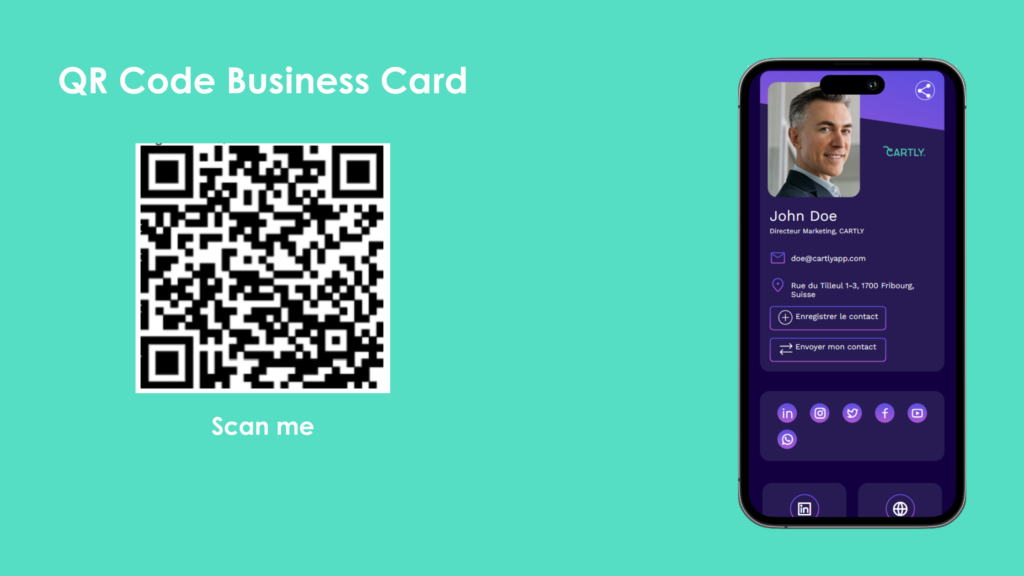
A QR code business card comes in two forms: a paper card with a QR code printed on it, and a digital business card whose QR code opens the card itself. Both solve the same problem: nobody has to type a phone number anymore. This guide shows how to create your QR code business card for free, what happens when someone scans it, when an offline QR code is useful, and how to use the code on paper, at a trade show booth and in your email signature.
What is a QR code business card?
A QR code is a square of black and white modules that stores a piece of information, most often a web address. The camera of any recent smartphone reads it without an extra app. On a business card, the code leads either to a website or a LinkedIn profile, or, in the case of a digital business card, to the card itself: a mobile page with your photo, name, job title, company, contact details and links, which your contact saves to their address book in one tap.
The difference with a printed card is the update. The QR code of a CARTLY digital business card stays the same when your number or your title changes. You edit the card, and everyone who already has the code sees the new version.
Create a QR code business card for free: four steps
- Create your account. A name and an email address are all it takes. The Starter plan is free for one card, with no time limit and no credit card.
- Add your contact details. Name, job title, phone, email, website, address and social networks, plus your photo and your logo.
- Choose your design. Colors, typography and layout, from our many templates with the Pro plan.
- Use your QR code. The QR code and the unique link are generated automatically. Show the code on your phone, download it or print it.
What happens when someone scans it
Your contact points their camera at the code, taps the link that appears, and the card opens in their browser, with nothing to install and no account. Two buttons make the difference with a paper card: Save contact puts your details into their address book as a vCard (VCF file); Send my contact opens a short form through which they send you theirs. Every scan and every exchange shows up in your analytics: views, QR code scans, clicks on your email, phone and links, contact exchanges. Starter includes basic analytics; Pro and Business add the full picture per user and for the whole organization.
Online QR code or offline QR code?
The online QR code contains the link to your card. It is the general case: always up to date, and it counts scans. The offline QR code (Pro and Business plans) contains your contact details themselves, so your contact can save them even without a signal, in an exhibition hall or a basement. After a change of details, you generate it again. The same logic applies to the pass in Apple Wallet and Google Wallet: a pass with the link to your card, or a pass with the details for use without a connection.
The QR code on paper, at your booth and in your email signature
- Paper cards and brochures. Download the QR code and print it on your paper cards, brochures or quotes. The printed card no longer goes out of date, because the code points to the live card. If you order cards from a printer, hand over the code file as it is.
- Trade show booth. A large QR code on the roll-up banner or the counter replaces the stack of cards; the person who scans it can send you their details directly. More on the digital business card for trade shows page.
- Email signature. With the Pro plan, CARTLY generates from your card an email signature for Outlook, Gmail and Apple Mail, with photo, contact details and QR code.
- Wallet. The card in Apple Wallet or Google Wallet shows the QR code in two taps, without opening a browser.
For teams: one QR code per team member
When you equip a team, every card has its own QR code. With the Pro and Business plans, you download the QR codes in bulk: by team, in your color, as PNG or SVG, with a white or transparent background, ready for the printer or the signature template. To manage the cards, templates and permissions of a whole team, see the team management page.
Tips for a QR code that scans every time
- Size. On a business card, at least 0.8 inch (2 cm) on each side; on a poster, larger according to the reading distance.
- Contrast. A dark code on a light background scans best. Leave a light margin around the code.
- Test. Scan the printed code with an iPhone and an Android phone before the print run. If you need a refresher, see how to scan a QR code with your smartphone.
- Don't regenerate it. The QR code of your CARTLY card stays valid through every edit. For a new number, edit the card instead of creating a new code.
Frequently asked questions
Can I download the QR code of my business card?
Yes. You show it on your phone, download it or print it; teams download it in bulk for all their cards with Pro and Business.
Does the QR code work without internet?
The online QR code needs a connection, since it opens the card. For places without a signal, Pro and Business offer the offline QR code, which contains the contact details themselves.
What happens if my details change?
You edit the card; the QR code and the link stay the same. Codes already printed remain valid.
Do my contacts need an app?
No. The smartphone camera reads the code and the card opens in the browser. Saving your details creates a standard vCard, the format every address book understands. More on that in what is a vCard.
Does CARTLY count the scans?
Yes. QR code scans appear in the analytics, per card and, for teams, with every card compared over the same period.
How much does a QR code for a business card cost?
Nothing: the QR code is part of the free Starter card. The Pro and Business plans add the offline QR code and the bulk download.
Everything about the free card, the plans and the frequently asked questions: Free digital business card: create yours.